

Remembered your Netflix login halfway to the airport? You can sign out of a hotel TV remotely using your own phone or computer. You do not need to return to the room or give reception your password.
Some hotel entertainment systems clear guest logins at checkout, but you should not assume every television does. Here is how to remove access after leaving and make the next checkout a little easier.
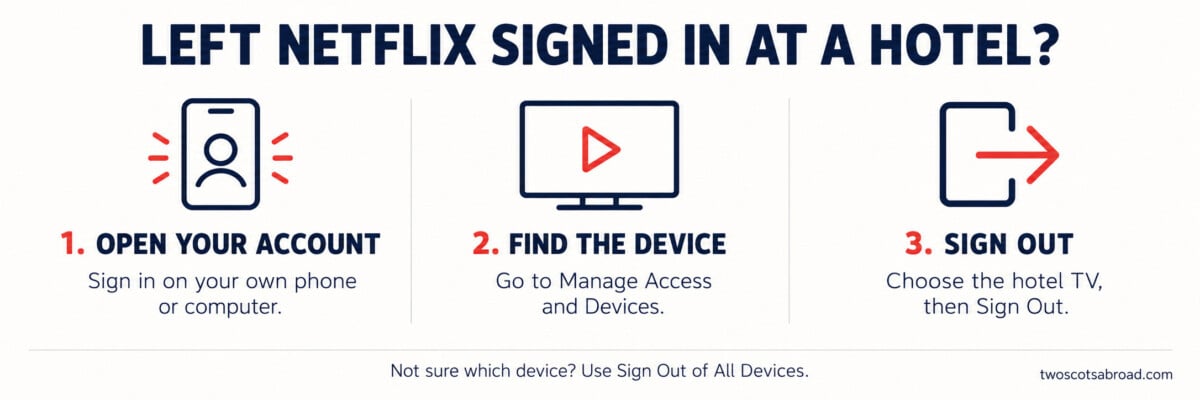

How to Sign Out of Netflix on a Hotel TV After Leaving
On your own device, sign in to Netflix and open Manage Access and Devices in your account. Netflix’s device sign-out instructions also link to this page.
- Review the recently active devices. Use the device type, most recently used profile and last-watched date to help identify the television.
- Open the down arrow beside the relevant device and select Sign Out.
- If you cannot identify it confidently, select Sign Out of All Devices at the bottom of the page, then confirm.
The all-devices option also signs out devices you still use, so expect to log back in at home.
Netflix says devices can take up to 48 hours to appear, and the list may not show every device or complete information. That is a delay in the device appearing on the list, not a stated waiting time for signing out. An absent TV is not proof that its session has already ended.
What If Someone Else Has Used Your Account?
An active TV session may let another guest watch through an accessible profile, see personalised recommendations and alter your viewing progress. Depending on the interface, titles in Continue Watching or My List may also be visible. Your holiday does not need to come with somebody else’s unfinished crime drama.
Unexpected activity is worth checking, although it is not automatically evidence of an intruder. Ask other people authorised to use the account whether the viewing was theirs.
If someone has used it without permission, Netflix recommends changing your password and signing out unfamiliar devices. Choose a password you do not use elsewhere. If you cannot recover access or suspicious activity continues, follow Netflix’s account-security recovery guidance and contact its support team.
For your next trip, our digital security checklist for travellers covers the wider preparation, including account recovery, device updates and backups.
Do Hotel TVs Automatically Sign You Out at Checkout?
Some do, through a hotel entertainment system connected to the checkout process. Others may simply have a smart TV with streaming apps installed. A Netflix button on the remote tells you little about how the property handles departing guests’ accounts.
It helps to distinguish how you watched from what needs to be cleared when you leave.
| How you watched | What to check before leaving |
|---|---|
| Signed into the Netflix app on the room TV | Sign out of the TV app and check that your profiles are no longer accessible. |
| Paired your device with a hotel casting system | End the casting connection and follow the hotel’s instructions for clearing the room pairing. Check separately for any TV-app login you created. |
| Watched only on your own phone, tablet or laptop | If you never connected to or signed into the TV, there is no room-TV session to remove. Keep your personal device locked. |
For example, ZAFIRO by Entertainment Solutions describes its offering as a Netflix-certified hotel streaming solution, with room-specific pairing and automatic deletion of guest credentials at checkout. These are the kinds of features to ask about when a property advertises in-room streaming, rather than assuming the screen resets itself.
Ask reception how the system works in your particular room, including whether it offers a guest-controlled logout or data-clear option. Clearing information from the hotel system is different from deleting viewing history held in your Netflix account.
Can You Use Netflix at a Hotel on Your Next Trip?
Netflix supports watching while travelling on compatible devices, including signing into a hotel or holiday-rental TV. Availability still depends on the equipment and your account. When travelling abroad, the available catalogue can differ from the one you see at home.
If the TV displays a Netflix Household warning, use the travel-verification option offered on screen, such as I’m Traveling, and follow the account-owner verification steps. Netflix’s guidance for watching away from your household explains the options. You do not need to treat a hotel as your new home simply because you are staying for a few nights.
Casting is not supported on every hotel TV. Netflix currently limits phone-to-TV casting to certain devices and supported plans. A hotel may offer casting for other apps without supporting Netflix in the same way. Check Netflix’s casting compatibility guidance and the room instructions before spending the evening searching for a missing Cast button.
Use the hotel’s documented setup process. If a QR code or sign-in page looks unfamiliar, ask reception to confirm the instructions before entering credentials. Keep your password and verification codes to yourself.
Still in the Room? Sign Out Before You Check Out
Open Netflix on the TV and look for Get Help, then Sign Out. The route can vary with the TV interface. After signing out, check that the app asks for a login instead of opening your profiles.
Simply turning the television off is not a reliable logout method. Nor does leaving the hotel Wi-Fi necessarily close an account you signed into directly on the TV. If the controls are unclear, ask reception for help with the room system.
| Checkout check | Action |
|---|---|
| Streaming accounts | Check every app you used, not just Netflix. |
| Casting connection | Disconnect your device and clear the room pairing where the system allows. |
| Room change | Do the same checks before moving rooms, even if you are staying at the hotel. |
| Personal equipment | Collect your phone, tablet, chargers and any streaming device or cable you brought. |
| Anything unresolved | Tell reception which room and service need attention. Do not hand over your account password. |
Add the TV check to your travel planning notes alongside checkout time and the airport transfer. Our guide to organising your carry-on can help with gathering the devices and documents you need before leaving.
A quick check before handing back the key saves a job later. If you do forget, manage the account from your own device and remove the access you no longer need.
